
en
Stop copying and pasting long wallet addresses every time you send crypto. KriptoK's Address Book lets you save trusted contacts for quick, error-free transfers.

Every time you send crypto, you need to enter the recipient's wallet address (a long string of letters and numbers). One wrong character means your crypto is sent to the wrong address and lost forever.
The Address Book lets you:
Open KriptoK and tap the menu icon (three lines) in the top right corner. Select Settings.
Scroll down to Address Book and tap it.
If your Address Book is empty, you'll see: "There's nothing here, yet. Create and manage your trusted wallet addresses."
Tap Add new contact +.
You'll see a form with several fields:
Contact Name (required)
Enter a name you'll recognize, like "Mom," "Trading Partner," or "Exchange Wallet."
Chain-Specific Addresses (optional)
Add wallet addresses for each blockchain this contact uses:
You don't need to fill in all fields. Only add addresses for chains you'll actually use with this contact.
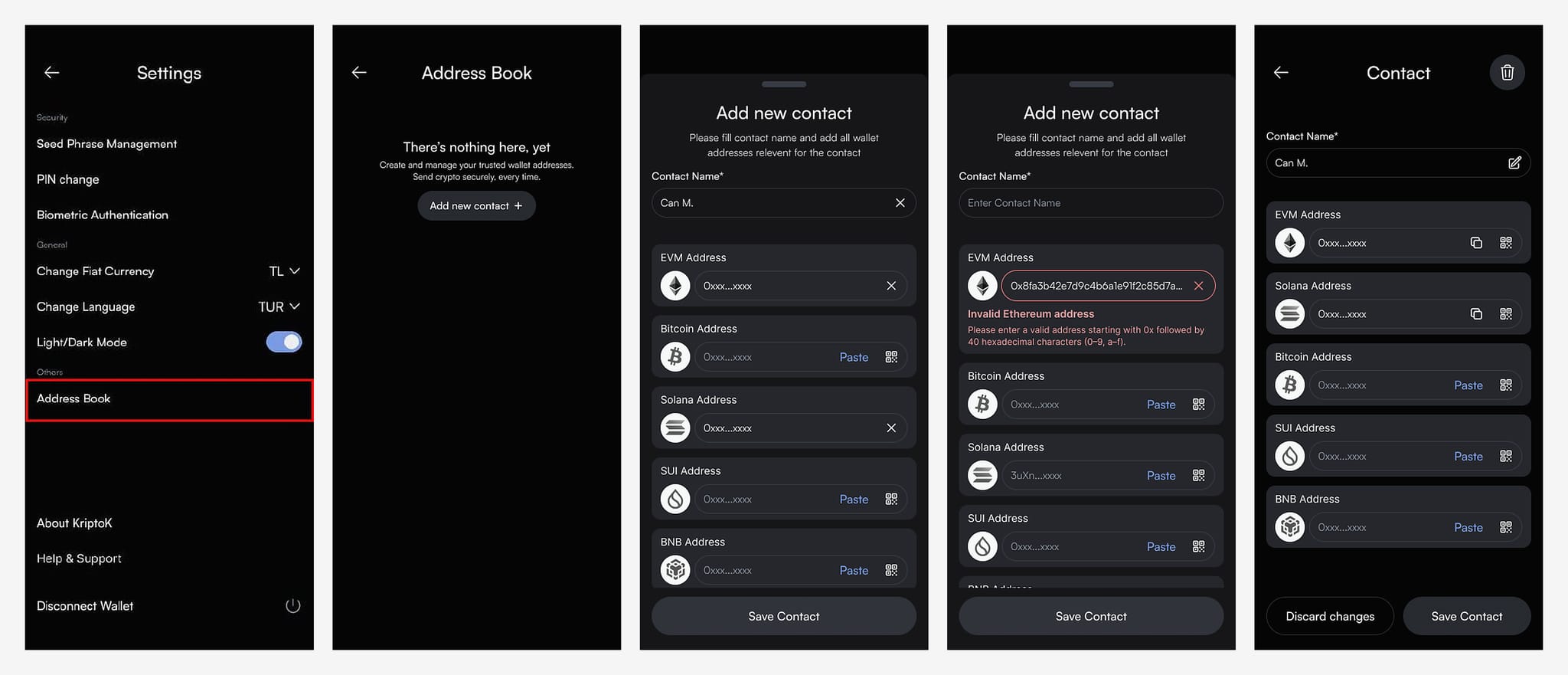
For each address type:
Option 1: Tap Paste to paste an address from your clipboard.
Option 2: Tap the QR code icon to scan the recipient's wallet QR code.
KriptoK validates addresses as you enter them. If you paste an invalid address, you'll see an error message.
Example error: "Invalid Ethereum address - Please enter a valid address starting with 0x followed by 40 hexadecimal characters (0-9, a-f)."
Back in the Address Book, you'll see a list of all your saved contacts.
Tap any contact to view their details. From here, you can:
When sending crypto:
This eliminates typing errors and makes sending crypto much faster.
Q: Can I import contacts from another wallet?
A: Not currently. You'll need to add contacts manually to KriptoK.
Q: Are my Address Book contacts backed up?
A: Address Book data is stored locally on your device. If you import your wallet on a new device, you'll need to re-add contacts.
Q: Can I send to someone not in my Address Book?
A: Yes. The Address Book is optional. You can always paste an address directly when sending.