
en
WalletConnect lets you securely connect KriptoK to decentralized applications (dApps) like Uniswap, OpenSea, or any Web3 platform. Here's how to connect.
WalletConnect is a protocol that connects your wallet to dApps without sharing your private keys. When you connect, dApps can:
WalletConnect lets you securely connect KriptoK to decentralized applications (dApps) like Uniswap, OpenSea, or any Web3 platform. Here's how to connect.
WalletConnect is a protocol that connects your wallet to dApps without sharing your private keys. When you connect, dApps can:
From your wallet home screen, tap the QR code icon next to your wallet name at the top.
You have two options:
Option A: Scan QR Code
Point your camera at the WalletConnect QR code displayed on the dApp's website or app.
Option B: Paste WalletConnect Code
If the dApp provides a WalletConnect URI (a long code starting with "wc:"), you can copy and paste it into KriptoK.
KriptoK will automatically detect the connection request.
KriptoK will show a connection request with:
If everything looks correct, tap Confirm or swipe to approve.
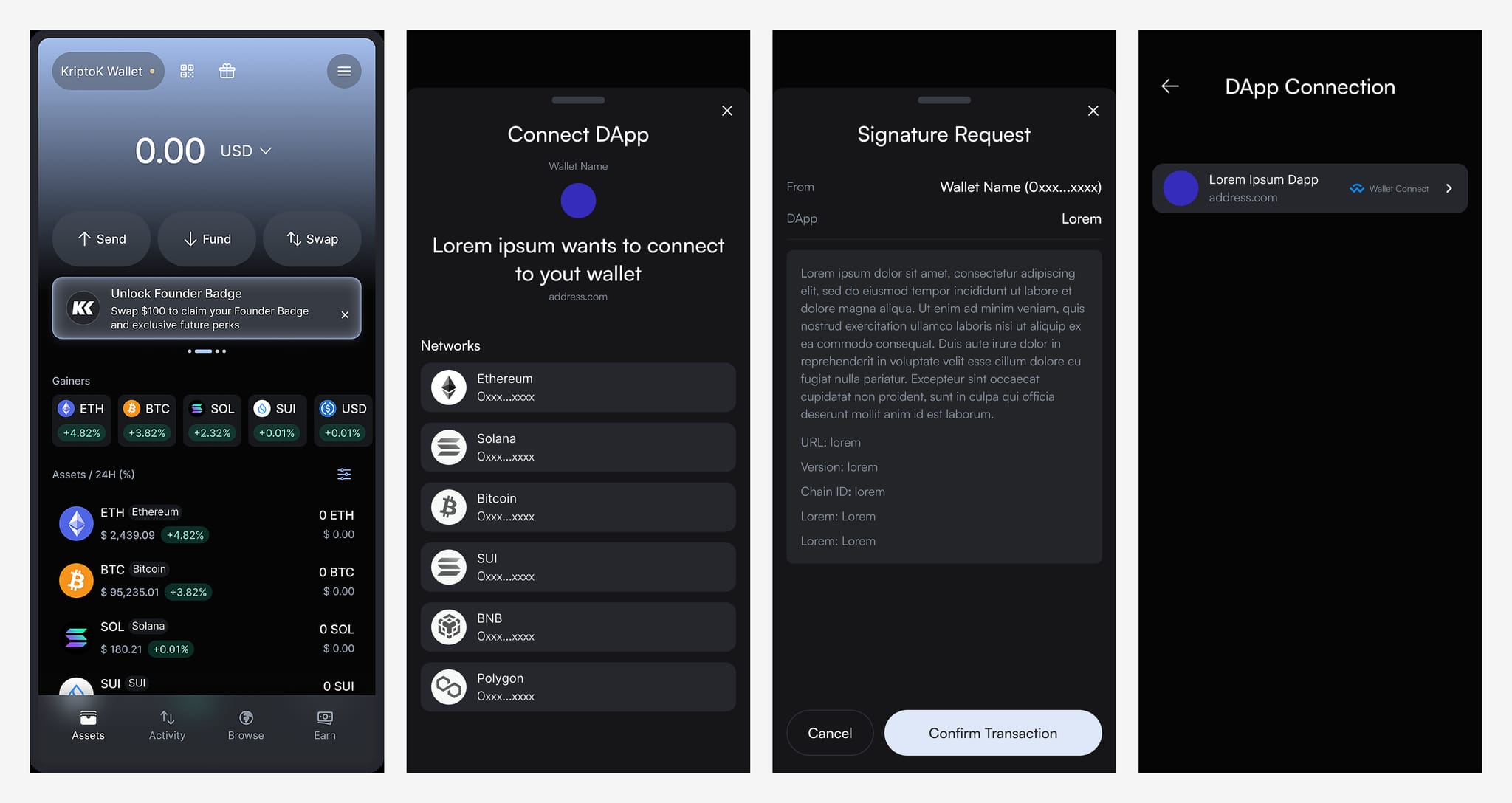
You'll see a confirmation that the dApp is now connected.
Once connected, the dApp can send you transaction requests. For example:
Each time, KriptoK will show you:
You always need to approve these actions manually. The dApp cannot do anything without your permission.
To see which dApps are connected to your wallet:
You'll see a list of all connected dApps. Tap any connection to view details or disconnect by tapping the trash icon.
Q: Can a dApp access my funds after connecting?
A: No. Connection only lets them see your addresses. They need your approval for every transaction.
Q: Do I need to disconnect after using a dApp?
A: Not necessarily, but it's good practice to disconnect from dApps you no longer use.
Q: Can I connect to multiple dApps at once?
A: Yes. You can have multiple active connections and manage them in Settings.