
en
Your crypto exists on the blockchain, not in your phone. Your wallet app is just the key to access it. If your phone is lost or broken, your backup is the only way to recover your funds.
Your crypto exists on the blockchain, not in your phone. Your wallet app is just the key to access it. If your phone is lost or broken, your backup is the only way to recover your funds.
Without a backup, your crypto cannot be recovered.
When you back up your wallet, you're backing up your seed phrase - the 12 words that can recreate your wallet on any device.
This isn't backing up the app. It's backing up the access key.
Open KriptoK and you'll see a reminder: "Secure your wallet - Save your seed phrase securely away"
Tap this to begin the backup process.
KriptoK will ask you to enter your PIN or use Face ID/Touch ID to verify it's you.
Before showing your seed phrase, KriptoK displays important information:
Read these carefully. Check the boxes to confirm you understand.
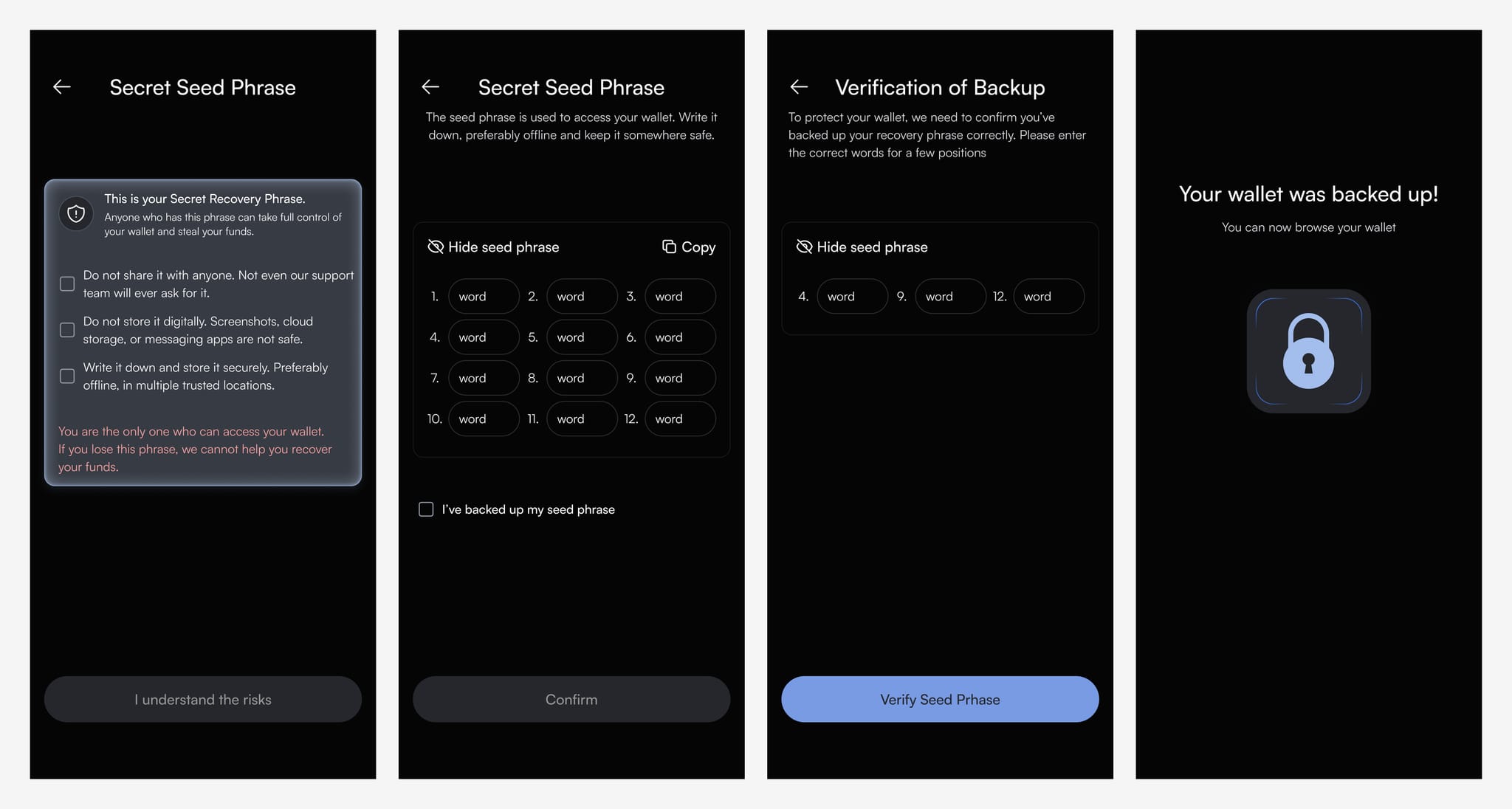
Tap Show seed phrase. KriptoK displays your 12 words, numbered 1-12.
Store these words safely in a secure location.
Never:
After viewing your seed phrase, tap Confirm.
KriptoK will ask you to select specific words from your backup (e.g., "Select word #4" and "Select word #9").
This ensures you've stored it correctly.
Once verified, you'll see: "Your wallet was backed up!"
Your wallet is now secured. You can use it safely knowing your funds are recoverable if needed.
If you lose your phone or need to access your wallet on a new device:
Q: Can I skip the backup?
A: You can, but if you lose your device, your crypto cannot be recovered. Always create a backup.
Q: What if I already created my wallet but didn't back up?
A: Follow these same steps. The security reminder will remain until you complete the backup.
Q: Can I back up to iCloud or Google Drive?
A: No. Digital storage is vulnerable to hacking. Physical storage only.